|
|

|
|
Switching schools within Schools online
Cross Year Enrolment Comparison Report
Enrolment / Results and No Approved LAP Report
Enrolment and LAP Report by School
Enrolment and LAP Report by Subject
Stage 1 and Modified Subjects Grade Count Report
When you login into you SACE Account you must enter your Email Address and Password.
Link: https://apps.sace.sa.edu.au/schools-online/login.dos
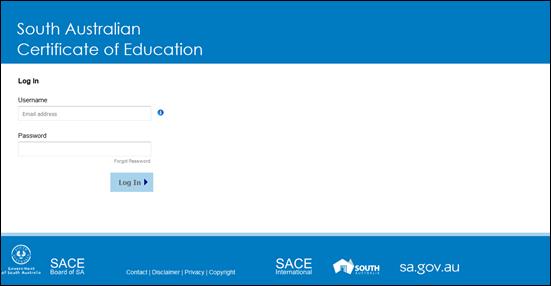
Training 1 SACE Online Account Login screen
To change your password:
1. Click on the settings icon  or your name in the top right corner of Schools Online.
2. Click on  menu option.
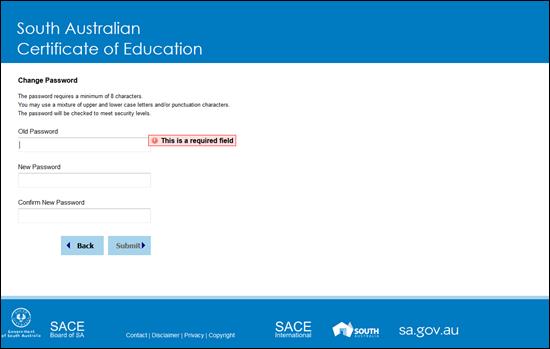
Training 2 Change Password screen
Change your password when you login into your SACE Online Account for the first time so that only you can log on SACE Online Account with your User Name.
Certain Schools Online accounts have the ability to switch schools. This allows the staff member to act as that school and be able to view data entered including running the same reports for the selected school.
To switch schools:
Click on the settings icon or your name in the top right corner of Schools Online
2. Click on  menu option.
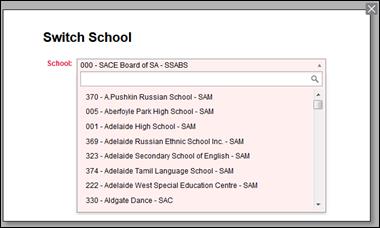
Training 3 Switch School
You can select an organisation by either:
· Entering the three digit school number in to the SACE Board School Number
· Entering a part or all of a school name in the School Name
· Entering a location from the valid options (e.g. South Australia – Metro (SAM), South Australia – Country (SAC), Northern Territory (NT) and Asia (ASIA).
Note: NT Senior Years Curriculum staff will only be able to switch to only NT Schools.
Select a school from the list available
Once a school have been selected click on Change.
Menu: Home > Admin > Internal Reports > Internal Reports Selection
The internal reports available in Schools Online include:
· Cross Year Enrolment Comparison Report
· Enrolment / Results and No Approved LAP Report
· Enrolment and LAP Report by School
· Enrolment and LAP Report by Subject
· School Contact Data Export
· Stage 1 and Modified Subjects Grade Count Report
Note: Transfer Log is an internal report only accessible to SACE Board staff which is used by Assessment Operation only.
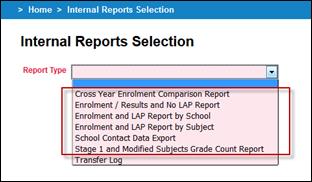
Training 4 Internal Reports Selection
The Cross Year Enrolment Comparison Report produces a list of subjects with student and class number for the current year and the past two years.
Menu: Home > Admin > Internal Reports > Internal Reports Selection
1. From the Internal Reports Selection screen, select Cross Year Enrolment Comparison Report as the Report Type.
2. Click on the OK button to display the Cross Year Enrolment Comparison Report screen.
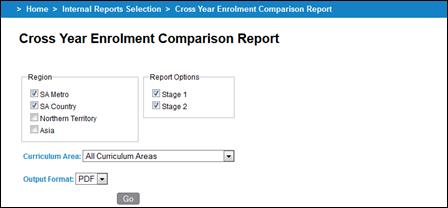
Training 5 Cross Year Enrolment Comparison Report
3. Select:
· one or more Region of schools to report on from the available options SA Metro, SA Country, Northern Territory and Asia.
· from Report Options (Stage 1 and/or Stage 2)
· a Curriculum Area from the drop down list. To report on every area use the All Curriculum Areas.
· an Output Format from the formats available PDF (Portable Document Format) and RTF (Rich Text Format).
Note: NT Senior Years Curriculum staff will only be only able to report on NT Schools.
4. Click on the Go button to view the report on screen. If you wish, you can save or print the report.
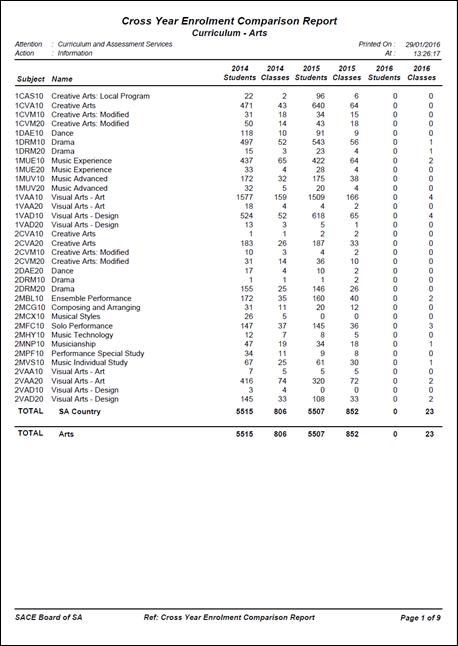
Training 6 Example of Cross Year Enrolment Comparison Report
The Enrolment / Results and No Approved LAP Report produces a Comma Separate Values (CSV) file of Schools and Enrolment or Results details where there is no approved LAP (Learning and Assessment Plan) for the school.
Menu: Home > Admin > Internal Reports > Internal Reports Selection
1. From the Internal Reports Selection screen, select Enrolment / Results and No Approved LAP Report as the Report Type.
2. Click on the OK button to display the Enrolment / Results and No Approved LAP Report screen.
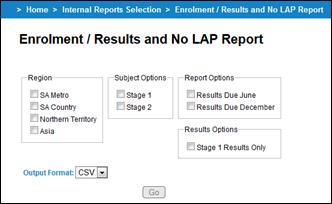
Training 7 Enrolment / Results and No Approved LAP Report
3. Select:
· one or more Region of schools to report on from the available options SA Metro, SA Country, Northern Territory and Asia.
· from Subject Options (Stage 1 and/or Stage 2)
· from Report Options (Results Due June and/or Results Due December)
· Stage 1 Results Only to only report on stage 1 enrolments that have a result of A to E.
Note: NT Senior Years Curriculum staff will only be only able to report on NT Schools.
4. Click on the Go button to save the CSV file to your desire location.
|
School Name School Code Subject Code Semester |
Results Due SOS Name No of Enr Plan Status |
Training 8 Information extracted by the Enrolment / Results and No Approved LAP Report
The Enrolment and LAP Report by School report produces a list of subjects including number of enrolments and classes in the current and completed enrolment numbers from last year by school. This report also reports on the LAP (Learning and Assessment Plan) status for the subject.
Menu: Home > Admin > Internal Reports > Internal Reports Selection
1. From the Internal Reports Selection screen, select Enrolment and LAP Report by School as the Report Type.
2. Click on the OK button to display the Enrolment and LAP Report by School screen.
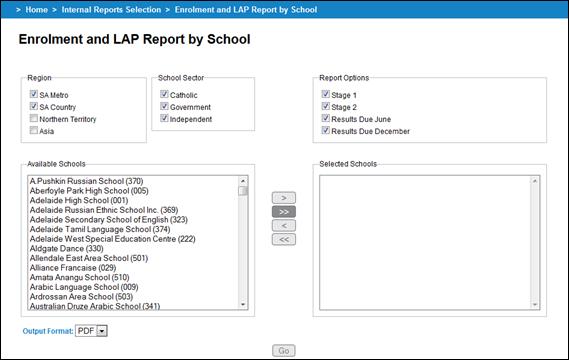
Training 9 Enrolment and LAP Report by School
3. Select:
· one or more schools to report on by double clicking on a school or moving the school by using the > or all schools >> buttons to have them appear in the Selected Schools. The Region and School Sector affects the school appearing in the Available Schools only.
· from Report Options (Stage 1, Stage 2, Results Due June and/or Results Due December)
· an Output Format from the formats available PDF (Portable Document Format) and RTF (Rich Text Format).
Note: NT Senior Years Curriculum staff will only be only able to report on NT Schools.
4. Click on the Go button to view the report on screen. If you wish, you can save or print the report.
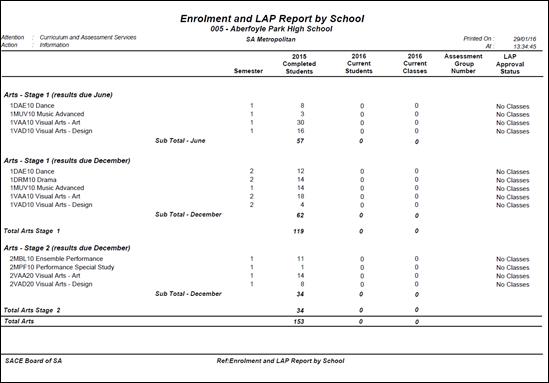 Training 10 Example of the Enrolment and LAP Report by School
The Enrolment and LAP Report by Subject report produces a list of schools including number of enrolments and classes in the current and completed enrolment numbers from last year by subject. This report also reports on the LAP (Learning and Assessment Plan) status for the school.
Menu: Home > Admin > Internal Reports > Internal Reports Selection
1. From the Internal Reports Selection screen, select Enrolment and LAP Report by Subject as the Report Type.
2. Click on the OK button to display the Enrolment and LAP Report by Subject screen.
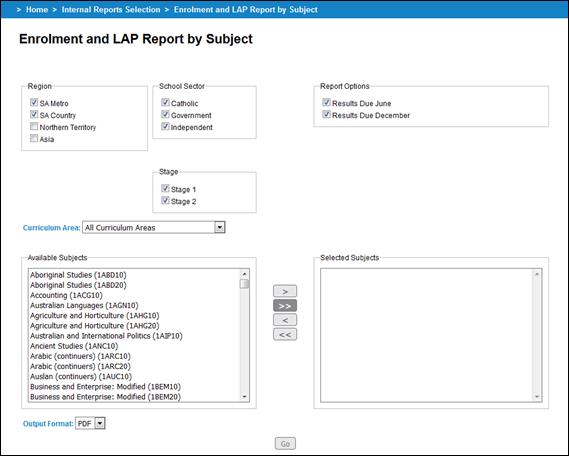
Training 11 Enrolment and LAP Report by Subject
3. Select:
· one or more Region of schools to report on from the available options SA Metro, SA Country, Northern Territory and Asia.
· one or more School Sector of schools to report on from the available options Catholic, Government and Independent.
· one or more subjects to report on by double clicking on a subject or moving the subject by using the > or all schools >> buttons to have them appear in the Selected Subjects. The Curriculum Area and Stage options affect the subject appearing in the Available Subjects only.
· from Report Options (Results Due June and/or Results Due December)
· an Output Format from the formats available PDF (Portable Document Format) and RTF (Rich Text Format).
Note: NT Senior Years Curriculum staff will only be only able to report on NT Schools.
4. Click on the Go button to view the report on screen. If you wish, you can save or print the report.
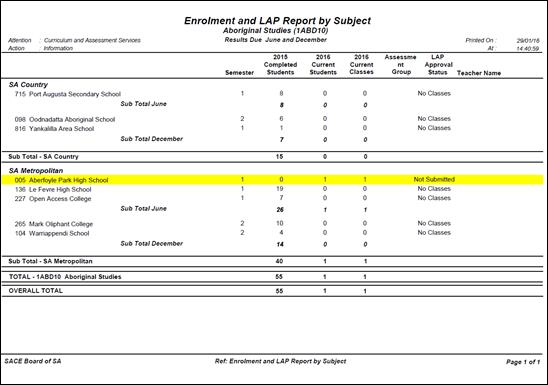
Training 12 Example of the Enrolment and LAP Report by Subject
The School Contact Data Export produces a Comma Separate Values (CSV) file of details of each school selected based on region/s selected.
Menu: Home > Admin > Internal Reports > Internal Reports Selection
1. From the Internal Reports Selection screen, select School Contact Data Export as the Report Type.
2. Click on the OK button to display the School Contact Data Export screen.
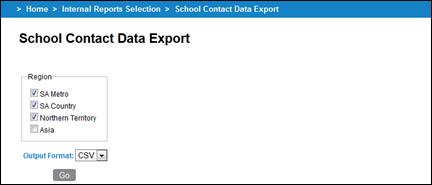
Training 13 School Contact Data Export
3. Select from Region the required regions of the schools you wish to be exported (SA Metro, SA Country, Northern Territory and/or Asia)
Note: NT Senior Years Curriculum staff will only be only able to report on NT Schools.
4. Click on the Go button to save the CSV file to your desire location.
|
Org Code Org Name Org Location SSM No. SSM Name Postal Addr1 Postal Addr2 Postal Addr3 Postal Suburb Postal State Postal Post Code Delivery Addr1 Delivery Addr2 Delivery Addr3 Delivery Suburb |
Delivery State Delivery Post Code Exam Courier No. School Type Principal Principal Email Principal Mobile No School Phone No. School Fax No. DATEX Operator DATEX Operator Email SACE Co-Ordinator SACE Co-Ord Email SACE Co-Ord Mobile No
|
Training 14 Information extracted by the School Contact Data Export
The Stage 1 and Modified Subjects Grade Count Report produces a Comma Separate Values (CSV) file of details of the subject options selected with a total of every grade band.
Menu: Home > Admin > Internal Reports > Internal Reports Selection
1. From the Internal Reports Selection screen, select Stage 1 and Modified Subjects Grade Count Report as the Report Type.
2. Click on the OK button to display the Stage 1 and Modified Subjects Grade Count Report screen.
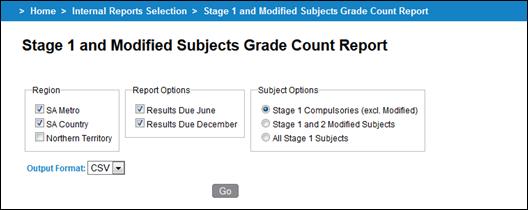
Training 15 Stage 1 and Modified Subjects Grade Count Report
3. Select:
· from Region the required regions of the schools you wish to be exported (SA Metro, SA Country, and/or Northern Territory)
· from Report Options (Results Due June and/or Results Due December)
· from Subject Options (Stage 1 Compulsories (excl. Modified), Stage 1 and 2 Modified Subjects or All Stage 1 Subjects)
Note: NT Senior Years Curriculum staff will only be only able to report on NT Schools.
4. Click on the Go button to save the CSV file to your desire location.
|
School Name School No SOS Name Subject Code Enrol Status No. A Grades No. B Grades |
No. C Grades No. D Grades No. E Grades No. N Grades No. P Grades No. Blank Grades Total No. Enr |
Training 16 Information extracted by the Stage 1 and Modified Subjects Grade Count Report